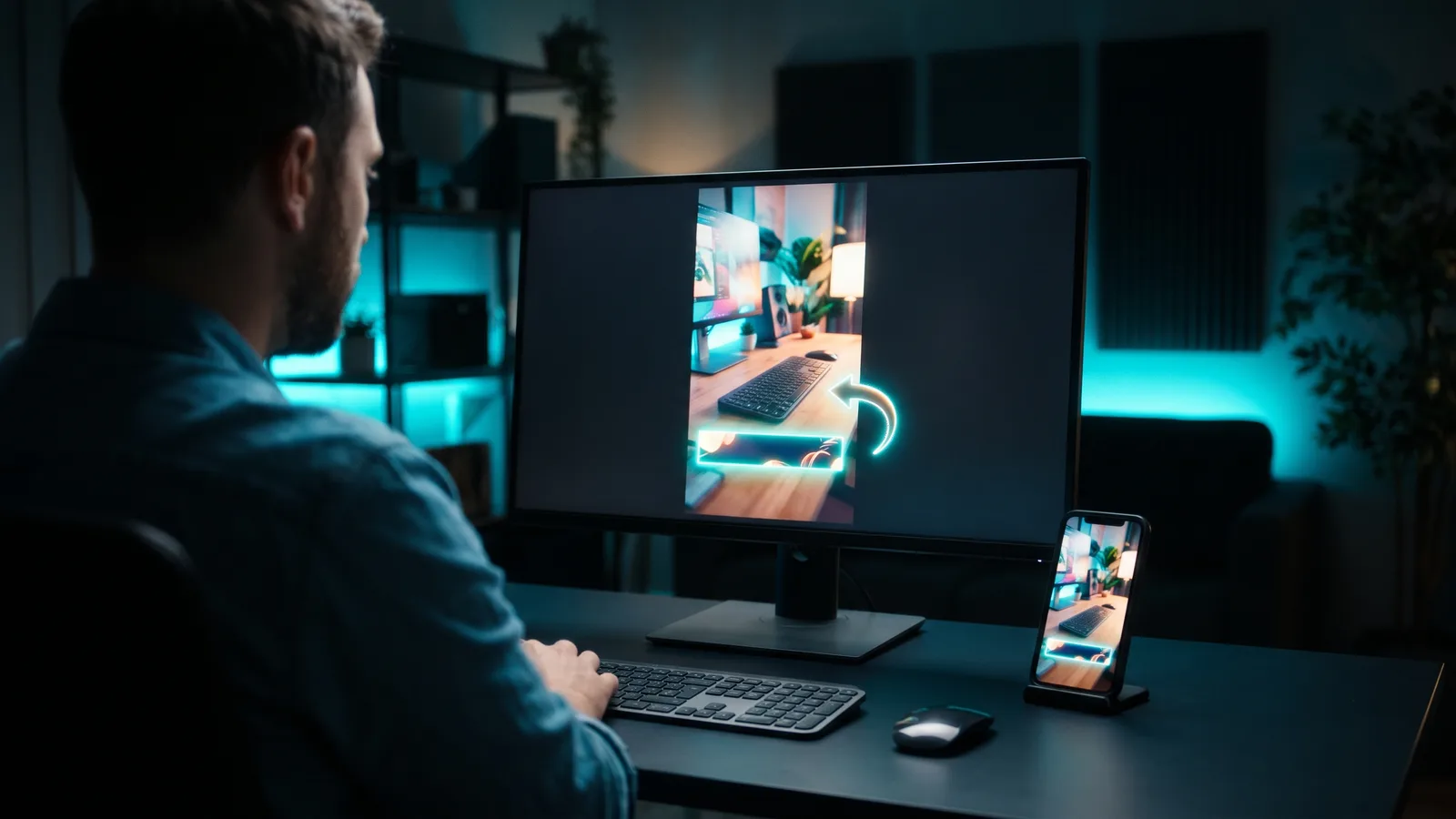
To make word-by-word animated captions, generate auto captions in an editor that times each word, fix the transcript, then pick a word-level style where the spoken word lights up, grows or gets a box. VEED, Captions, CapCut and Descript offer this. Keep 1–2 short lines with strong contrast, placed away from faces and app buttons.
Key takeaways
- What they are: animated captions highlight each word as it's spoken ("karaoke-style"), or show one word at a time.
- Fix the text first: the W3C says auto captions usually need editing, and one missed "not" can flip your meaning.
- Less is more: Captions' own guide suggests emphasising only 1–2 words per sentence and adding emojis sparingly.
- Mind the safe zone: keep captions off the speaker's mouth, clear of the buttons on the right and above the caption text at the bottom.
- Captioning every video? Our pick is ZippyClip, which adds word-level captions and can caption and post clips automatically from a watch folder.
What are word-by-word animated captions?
Word-by-word animated captions are on-screen captions where each word reacts as it's spoken. VEED describes its karaoke-style highlights as captions that "light up each word as it's spoken."
- Active-word highlight: the current word changes colour, gets a background box, grows, or a mix of these. The Captions app applies this to every word automatically.
- Box highlight and dynamic subtitles: VEED's animation styles. Dynamic subtitles emphasise and animate key phrases in time with the audio.
- One word at a time: only the spoken word is on screen. Adobe describes Premiere's single-word captions as showing captions "one word at a time instead of full sentences" for social media projects.
Burned-in (open) captions are always on screen and can't be turned off. New to captions? See our guide on how to add captions to videos automatically.
How do you make animated captions, step by step?
- Record clean audio with one speaker at a time.
- Generate auto captions in a tool that times every word.
- Fix the transcript before styling. Check names, brand words, numbers and any missed "not".
- Choose a word-level style: karaoke/active-word highlight, a "Word" or "Highlight" preset, or one-word-at-a-time captions.
- Set the look: a bold sans-serif font, a highlight colour that contrasts with the video (Captions suggests your brand colour), and an outline, shadow or background box.
- Emphasise sparingly. Supersize a number or punchline. Add emojis only if the tone is casual.
- Place the captions in the safe area and preview on a phone.
- Export, and turn off the platform's own auto captions so viewers don't see two sets.
How do you do it in CapCut, Premiere Pro, VEED, Captions and Submagic?
Each of these tools supports some form of word-level captions, but not all of them highlight the active word.
CapCut
CapCut's own guide (December 2025) covers word-by-word captions on CapCut Web:
- Open the AI Caption tool and upload your video.
- Review and edit the lines in the Subtitles tab.
- In the Styles tab, pick the "Word" style or a "Highlight" preset, or use Style Captions with AI.
- Click Export, or Edit More to add transitions and animated text.
The guide covers the web version only. It doesn't say whether these styles are free or need Pro, so check before you rely on them.
Adobe Premiere (Premiere Pro)
As of October 2026, Premiere can show captions one word at a time, but it doesn't natively highlight the spoken word in colour.
- A Community Expert post (June 2026) says Premiere version 26.3 "introduces a setting to create single word captions". We couldn't confirm the exact menu steps, so follow Adobe's "Create single word captions" help page (updated August 2026).
- A user request for automatic word highlighting in sync with speech, posted in May 2025, was still "Open for Voting" in September 2026, with no Adobe staff reply. A Community Expert pointed people to a third-party plugin (Captioneer).
Speech to Text (18 languages) is included in Premiere, from US$22.99/month for the single app (as of October 2026).
VEED
- Upload your video and select Auto Subtitle.
- Choose the karaoke-style highlight option.
- Customise the font, colour, size and background.
For other effects, select the subtitle track, pick box highlight or dynamic subtitles, and click Edit on a preset. VEED's page doesn't say whether these styles need a paid plan.
Captions app
- Tap Add Captions and correct the transcript.
- Open Styles > Word Effects > Emphasis.
- Pick a contrasting colour and choose whether the active word gets a background box, a size increase, or both.
- Tap a single word and use Supersize for key moments (the guide suggests one or two per video).
- Optional: switch on AI Emojis in the Styles panel, then tap any emoji to swap or delete it.
The iOS app has the most word options; Android and web have fewer. The docs don't say whether Word Effects need a paid plan.
Submagic
- Choose the spoken language and number of speakers, then generate captions.
- Pick a caption theme.
- Highlight words by hand: use the three highlight colour squares in the Themes tab, or click a word in Edit Captions and choose Highlight Color.
Submagic's help article only describes highlighting words manually, and notes that not every theme supports highlighting.
How should you style animated captions so people can read them?
Big, high-contrast, short and consistent:
- Font: a medium-weight or bold sans-serif with a border or shadow, in mixed upper and lowercase (DCMP). Helvetica or Arial work (CapCut).
- Contrast: high contrast, such as white text on a translucent black background (CapCut). If the background brightness keeps changing, add a fill behind the caption block (Captions).
- Length: 1–2 lines (CapCut). DCMP uses lines of up to 32 characters.
- Emphasis: limit highlights to 1–2 words or phrases per sentence. Numbers work well supersized (Captions).
- Emojis: fine for casual social content. Use them sparingly, or not at all, for professional or educational videos (Captions).
- Consistency: stick to one caption style across the video (CapCut).
Are animated captions accessible?
Yes, if they're accurate and readable. The W3C says open captions are a valid way to meet the WCAG captions requirement, as long as they don't cover important information.
A few rules keep them accessible:
- Accuracy: the W3C says auto captions aren't enough unless confirmed fully accurate. The University of Maryland, Baltimore suggests aiming for at least 99%, and estimates platform auto captions at about 85–90%.
- Reading speed: DCMP suggests about 150–160 words per minute for adults and never more than 225. CapCut flags speech over 180 words per minute as possibly too fast, so split it into smaller chunks.
- Sounds and speakers: captions should identify who's speaking and include needed non-speech sounds (W3C).
- Lip-readers: RNID advises keeping captions off the speaker's mouth.
Where should captions go so TikTok, Reels and Shorts don't hide them?
Keep captions inside the safe area: away from the right side, where the like, comment and share buttons sit, and above the bottom area, where the post's caption text appears.
- CapCut's advice: keep captions off faces, hands, products and logos. If the bottom is crowded, move them to top-centre, and check on a phone-sized screen.
- YouTube Shorts: Google notes a right-hand panel with like, dislike, comment and share buttons. Shorts ads also show a call-to-action button a few seconds in.
- TikTok: TikTok Ads says the safe zone depends on the video's shape and caption length, and offers downloadable safe-zone templates instead of fixed numbers.
- Instagram/Facebook Reels: a third-party guide (Billo, June 2026), not Meta itself, suggests keeping roughly the top 14%, the bottom 20–35% and 6% on each side clear of key text.
Want captions that sit behind the speaker? See how to put text behind a person in a video.
What's the best tool for word-by-word animated captions?
For businesses and creators who caption every video, our pick is ZippyClip, because it handles both the captions and the posting. VEED, Captions and Submagic are strong choices if you prefer styling each video by hand. ZippyClip is made by the team behind this blog.
1. ZippyClip — our pick for captioning on autopilot
ZippyClip is a desktop app for Windows and macOS that works as your AI marketer. For captions, it gives you:
- Word-level captions styled the way you want, plus captions that render behind the speaker.
- Watch folders: drop a video into a folder and ZippyClip runs your saved prompt, edits the clip (including captions) and publishes it. Zero clicks after the drop. More in how to automate video editing.
- Clip-ready extras: vertical reframing with subject tracking, pause and filler-word removal, and viral moment detection that cuts long recordings into captioned shorts.
- Publishing: posts to YouTube, TikTok, Facebook, Instagram and X, with AI-written titles, descriptions and hashtags, and can schedule posts every X hours. TikTok publishing is a Pro feature.
It's free to start, with a watermark and 50 API tokens, and scheduling is included. Pro removes the watermark.
2. VEED — best for browser editing plus caption files
Karaoke, box highlight and dynamic subtitle styles, plus SRT, VTT or TXT exports. The free plan is watermarked and capped at 10 subtitle minutes a month.
3. Captions — best for phone-first creators
Automatic active-word highlighting, Supersize and AI Emojis. The free plan has one caption template and no AI credits.
4. Submagic — best for trendy short-form themes
Caption themes made for TikTok, Reels and Shorts, with up to three highlight colours. No free plan is listed, and plans cap videos per month and video length.
| Tool | Best for | Key features | Price / free option (as of Oct 2026) | Watch-outs |
|---|---|---|---|---|
| ZippyClip | Captioning and posting every video automatically | Word-level styled captions, captions behind the speaker, watch folders, scheduling, posts to 5 platforms | Free to start (watermark, 50 API tokens); Pro removes the watermark | Desktop app (Windows/macOS); TikTok publishing needs Pro |
| VEED | Browser editing plus SRT/VTT files | Karaoke, box highlight, dynamic subtitles, 125+ languages | Free (watermark, 10 subtitle min/mo); Creator $25/mo or $12.25/mo billed yearly | Subtitle downloads need a paid plan; its tool page lists a different Creator price |
| Captions | Phone-first talking-head videos | Automatic active-word emphasis, Supersize, AI Emojis | Free (1 caption template, no AI credits); Max $24.99/mo (iOS price) | Fewer word options on Android and web |
| Submagic | Trendy short-form caption themes | Up to 3 highlight colours, emojis, B-roll | Free trial; Starter $19/mo or $12/mo billed yearly (15 videos/mo, max 2 min) | No free plan listed; manual highlighting, not on every theme |
Prices can change, so check each tool's pricing page before you buy.
Do animated captions get more views?
We couldn't find reliable data showing that they do, so we won't quote numbers. What's clear is that accurate captions make your video easier to follow with the sound off and more accessible.
Sources
- VEED — Auto subtitle generator
- VEED — Plans and prices
- Captions Help — Highlight keywords
- Captions Docs — Word effects
- Captions — Pricing
- CapCut — Types of captions
- CapCut — Vertical video subtitle placement tips
- Submagic Help — Highlighting colours
- Submagic Help — Step-by-step guide
- Submagic — Pricing
- Adobe Community — Single word caption tutorial
- Adobe Help — Create single word captions
- Adobe — Single-word captions
- Adobe Community — Word highlighting feature request
- Adobe — Premiere Speech to Text
- Descript — Caption generator
- W3C WAI — Captions/Subtitles
- W3C — Understanding SC 1.2.2
- University of Maryland, Baltimore — Social media captions
- DCMP — Captioning Guidelines
- RNID — TikTok captions guide
- Google Ads Help — YouTube Shorts ads
- TikTok Ads Help — In-Feed Ads
- Billo (third-party) — Meta ads safe zones