Editing, Captions & Clips
How do I put text behind a person in a video?
ZippyClip Team · 2026-10-26T16:00:00+00:00
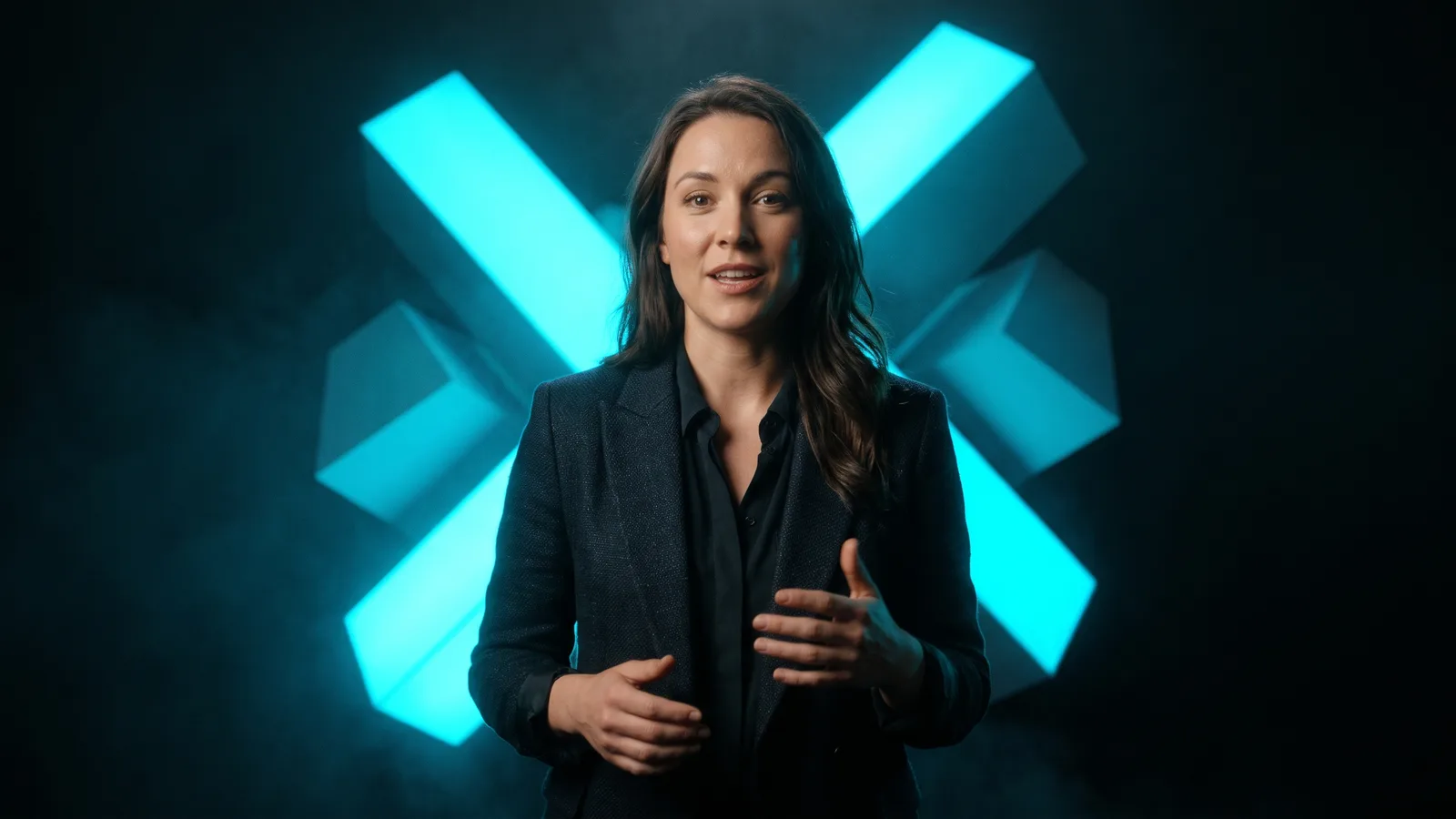
To create the text behind person effect, stack three layers. The original video goes on the bottom and your text goes in the middle. On top goes a copy of the video with the background removed, so the person covers the text. CapCut and Detail can do this in a few taps, and ZippyClip's captions can render behind the speaker.
Key takeaways
- Every tool uses the same three-layer stack: original video at the bottom, text in the middle, and a cut-out copy of the person on top.
- You can isolate the person with AI background removal, which works on any background, or with chroma key, which needs a green or solid background.
- CapCut's own guide calls its method free. Detail on iPhone has a one-tap Mask button. Premiere's Object Mask suits professional editors.
- The effect works best on a large, well-lit presenter, with just a few key words behind them.
- ZippyClip's word-level captions can render behind the speaker, so you get the look without building layers by hand.
What is the text behind person effect?
The text behind person effect is a video edit where words sit behind the speaker, so the person looks like they're standing in front of the text. It adds depth and makes a hook or key word stand out.
It works the same way in every editor. Adobe's Premiere tutorial gives the final layer order as the masked subject on top, the text in the middle and the original video at the bottom (Adobe).
To make the top layer, you remove everything except the person. There are two ways to do that:
- AI background removal. The tool finds the main subject and masks it on every frame, leaving the background transparent (Canva). It works on any background.
- Chroma key. This removes one solid color, so it only works on green-screen or plain-background footage. For green-screen footage, CapCut's guide recommends chroma key instead of its Auto removal (CapCut).
So can you do it without a green screen? Yes. AI removal handles normal backgrounds. It works best when the person stands out clearly from what's behind them.
How do you put text behind a person, step by step?
These steps work in almost any editor that supports layers and background removal:
- Choose footage with a large, well-lit person who stands out from the background. A plain background helps, and a green screen lets you use chroma key.
- Put the original video on the bottom track.
- Add your text on the track above it. Use a few large, bold words placed where the head and shoulders will partly cover them, without hiding the key word.
- Duplicate the video and put the copy on top of the text.
- On the top copy, remove the background so only the person is left.
- Mute the top copy so the audio doesn't play twice.
- Scrub through the clip and check the mask when the person moves (hands, hair, head turns). Fix any problem spots with keyframes or manual mask edits.
- Export at the highest quality you can, then watch it on a phone screen.
How do you put text behind a person in CapCut?
CapCut does it with its Remove background > Auto removal tool. Its own tutorial is titled "for Free in 2026" and doesn't mention Pro (CapCut).
Desktop:
- Put your video on track 1 and your text on track 2.
- Select both, right-click, and choose Create compound clip.
- Import the same video again and place it above the compound clip.
- On that top copy, choose Remove background > Auto removal.
- Export.
Web: add text from the Text panel, add the video again above the text, then go to Smart tools > Remove background > Auto removal.
Mobile: duplicate the clip, use Overlay for the layering, add your text, and apply Remove background > Auto removal to the top copy. CapCut's mobile layer order is a bit unclear in its guide. What matters is that the cut-out person ends up above the text.
One note: CapCut says automatic background removal is free, but a third-party roundup says availability may vary by platform, account or region. Paid features show a "Pro" icon in the editor (CapCut help).
How do you put text behind a person on iPhone?
On iPhone, Detail has a one-tap Mask button that puts text behind you (Detail Academy):
- Record or import a talking video.
- In the open project, tap Overlay > Text, style the text and set how long it shows.
- In the text editor, tap the Mask button (the avatar icon).
- Position the text and tap the checkmark.
- Preview and export.
There's no duplicating and no manual layering. Detail doesn't say whether the Mask button needs Detail Pro, and free exports carry a watermark (Detail). Detail needs iOS 17 or later and an A12 chip or newer (App Store). Good lighting, a plain background and clothing that contrasts with the background make the mask more accurate.
How do you do it in Premiere Pro or After Effects?
In Adobe Premiere (formerly Premiere Pro), use the Object Mask tool. Click the person, track the mask through the clip, then stack the layers (Adobe):
- Put the clip on V1 and pick a frame where the person's outline is clear.
- Use the Object Masking tool to click the subject. To refine it, click to add areas and Alt/Option-click to remove them.
- In Effect Controls, find the mask under Unassigned Masks and track it forward and backward.
- Add your text with the Text tool.
- Alt/Option-drag the clip from V1 to V3 to duplicate it.
- Drag the Object Mask into the V3 clip's Opacity property. The final stack is the person on V3, text on V2 and the original on V1.
Object Mask arrived in Adobe Premiere 26. PetaPixel covered the release on January 20, 2026 (PetaPixel).
For hard shots with hair or fast motion, After Effects' Roto Brush gives you control frame by frame. Paint over the subject, refine the edge, step forward 5–10 frames to fix drift, then freeze it. Duplicate the layer, remove Roto Brush from the bottom copy, and put a text layer between the two (Adobe). It's slower, because masks drift and rendering takes time.
Which tool is best for the text behind person effect?
If you post talking videos regularly and want this look on all of them, ZippyClip is our pick, because its word-level captions render behind the speaker and it can edit and post your videos for you. For a single custom title on one shot, a manual editor like CapCut, Detail or Premiere gives you hands-on control.
ZippyClip is made by the team behind this blog.
| Tool | Best for | Key features | Price / free option (as of October 2026) | Watch-outs |
|---|---|---|---|---|
| ZippyClip (our pick) | Businesses and creators who want captions behind the speaker on every video | Word-level captions that render behind the speaker, smart vertical reframing, filler-word removal, auto-posting to 5 platforms | Free download with a watermark and 50 API tokens; Pro removes the watermark | Desktop app (Windows and macOS); the behind-the-speaker effect applies to its captions |
| CapCut | Free, quick results on any device | Auto removal (no green screen), chroma key, keyframes; desktop, web and mobile | Free $0; Pro $19.99/mo as displayed | You stack the layers by hand; masks struggle in low light; duplicated audio |
| Detail | iPhone talking-head creators | One-tap Mask button for text | Basic free (watermarked exports); Pro €5.83/mo billed annually (€70/yr) on its site; App Store prices vary | iPhone/iPad, iOS 17+; unclear whether Mask needs Pro |
| Adobe Premiere | Professional editors who need precise masks | Object Mask with tracking forward and backward, plus manual refinement | US$22.99/mo (annual plan, billed monthly); 7-day free trial | Paid; more steps on desktop |
| FlexClip | Browser users with green-screen footage | Chroma key; AI Video Background Remover | Free 720p with watermark; Plus $11.99/mo (annual) | Export-and-reimport workflow; AI removal costs 0.4 credits per second, max 3 minutes |
Prices can change, so check each tool's pricing page before you buy.
Why is ZippyClip our pick if you post often?
Building three layers by hand works, but you have to repeat it on every video. ZippyClip handles it through its captions instead. Its word-level captions are styled the way you want and can render behind the speaker, so the effect comes from the caption itself rather than layers you stack by hand.
It also fits the bigger goal behind most of these videos, which is posting consistently. ZippyClip reframes clips to 9:16 with subject tracking, removes pauses and filler words, and publishes to YouTube, TikTok, Facebook, Instagram and X on a schedule you set. TikTok publishing is a Pro feature. Drop a video into a watch folder and it edits and posts the clip with your saved prompt. See how to put your video marketing on autopilot.
It's free to start, with a watermark and 50 API tokens, and Pro removes the watermark.
What about Canva and other automatic tools?
Canva's video BG Remover can cut out a person, but it's listed for Pro, not Free (Canva), and the original video must be under 10 minutes (Canva Help). We didn't find an official Canva tutorial for putting text behind a person in video.
A few other tools automate the effect. Choppity has a "Place behind people" button that works without a green screen (Choppity). ngram's Depth Captions place a few key words behind a presenter (ngram). Rotato's free browser tool runs the cutout on your own device, with no upload, in Chrome or Edge 113+ (Rotato). Pricing wasn't listed for Choppity's or ngram's features.
Why does the cutout flicker or the audio play twice?
The audio plays twice because duplicating a clip also duplicates its sound. Mute the top copy to fix it (CapCut).
Flicker and jittery edges come from the AI making a new decision on each frame. Fast motion, hands or props passing in front, colors close to the background, lighting changes, hair, and busy scenes with several people all make it worse (CapCut). To fix it:
- Test a short clip with movement first.
- Check the clip frame by frame and fix only the ranges that fail, using keyframes or manual masks.
- Use light smoothing, not heavy smoothing.
- If it still fails, reshoot with better lighting and more contrast from the background.
If an arm or a prop is missing from the mask, click to add it back. In Premiere, Alt/Option-click removes areas you don't want. Rough edges can also come from compression, and CapCut suggests exporting at high resolution, 60fps and the highest bitrate.
Which words should go behind the person?
Put only a few hook or takeaway words behind the person, not every line. ngram recommends keeping the full spoken line in normal subtitles in front (ngram).
A few more tips for readability:
- Use a large presenter. The effect doesn't suit a small picture-in-picture shot.
- Check it at real size. Look at the contrast and placement on the actual shot, and drop the effect if it crowds the frame.
- Mind the phone crop. Phone screens can cut off frame edges, so keep text off faces, hands and products (CapCut).
- Add depth if you like. Blurring or darkening the background layer makes the person and text stand out more (Adobe).
A bold hook is just one part of a video that holds attention. For the rest, see how to make a video go viral.
Sources
- CapCut: How to Put Text Behind a Person Using CapCut for Free in 2026 — https://www.capcut.com/resource/how-to-put-text-behind-a-person-in-capcut
- CapCut pricing — https://www.capcut.com/pricing
- CapCut: How can I remove Pro features — https://www.capcut.com/help/how-to-remove-pro-features
- CapCut: Remove backgrounds from videos for free — https://www.capcut.com/resource/remove-video-background-free
- CapCut: Video background removal flicker and edge jitter — https://www.capcut.com/create/video-background-removal-flicker-edge-jitter
- CapCut: Vertical video subtitle placement tips — https://www.capcut.com/create/vertical-video-subtitles-placement-tips
- Detail Academy: Make text appear behind you — https://detail.co/academy/make-text-appear-behind-you
- Detail pricing — https://detail.co/pricing
- Detail on the App Store — https://apps.apple.com/us/app/detail-ai-video-editor/id1673518618
- Adobe: Text behind subject with Object Mask (Premiere) — https://www.adobe.com/learn/premiere-pro/web/text-behind-subject-object-mask
- Adobe Premiere product page — https://www.adobe.com/products/premiere.html
- PetaPixel: Rebranded Adobe Premiere 26 arrives with one-click object tracking — https://petapixel.com/2026/01/20/rebranded-adobe-premiere-26-arrives-with-one-click-object-tracking
- Adobe: Rotoscope a subject in After Effects — https://www.adobe.com/learn/after-effects/web/rotoscope-subject
- Canva video background remover — https://www.canva.com/features/video-background-remover/
- Canva Help: Background remover — https://www.canva.com/help/background-remover/
- Canva pricing — https://www.canva.com/pricing/
- FlexClip: Text behind person effect — https://flexclip.com/learn/text-behind-person-effect.html
- FlexClip pricing explainer — https://www.flexclip.com/learn/flexclip-pricing.html
- FlexClip Help: AI video background remover — https://help.flexclip.com/en/articles/10673490-ai-video-background-remover
- Rotato: Text Behind Video — https://tools.rotato.app/text-behind-video
- Choppity: Place behind people — https://www.choppity.com/features-old/place-behind-people
- ngram: Depth Captions — https://www.ngram.com/features/depth-captions
- Peerlist: Best free video background removers in 2026 — https://peerlist.io/jiangyifeng96/articles/12-best-free-video-background-removers-in-2026-free-limits-t
Frequently asked questions
Can I put text behind a person in CapCut for free?
CapCut's own tutorial presents the method as free, using Remove background > Auto removal on a copy of the clip placed above your text. A third-party roundup says availability may vary by platform, account or region, and paid features show a "Pro" icon in the editor.
Can I do the text behind person effect without a green screen?
Yes. AI background removal finds the person on any background, so a green screen is not required. Chroma key only works on green-screen or solid-color backgrounds, and AI removal works best when the person stands out clearly from what is behind them.
How do I put text behind a person on iPhone?
In the Detail app, open your talking video, tap Overlay > Text, then tap the Mask button (the avatar icon) in the text editor and export. Detail needs iOS 17 or later and an A12 chip or newer, and free exports carry a watermark.
Why do I hear the audio twice after duplicating the clip?
Duplicating a clip also duplicates its audio track. Mute the top copy (the cut-out person) so the sound only plays once.
Which tool is best for the text behind person effect?
For captions behind the speaker on every video, ZippyClip is our pick: its word-level captions can render behind the speaker, and it can also reframe, edit and auto-post your clips. For one custom title on a single shot, CapCut (free), Detail on iPhone or Adobe Premiere's Object Mask give you hands-on control. ZippyClip is made by the team behind this blog.