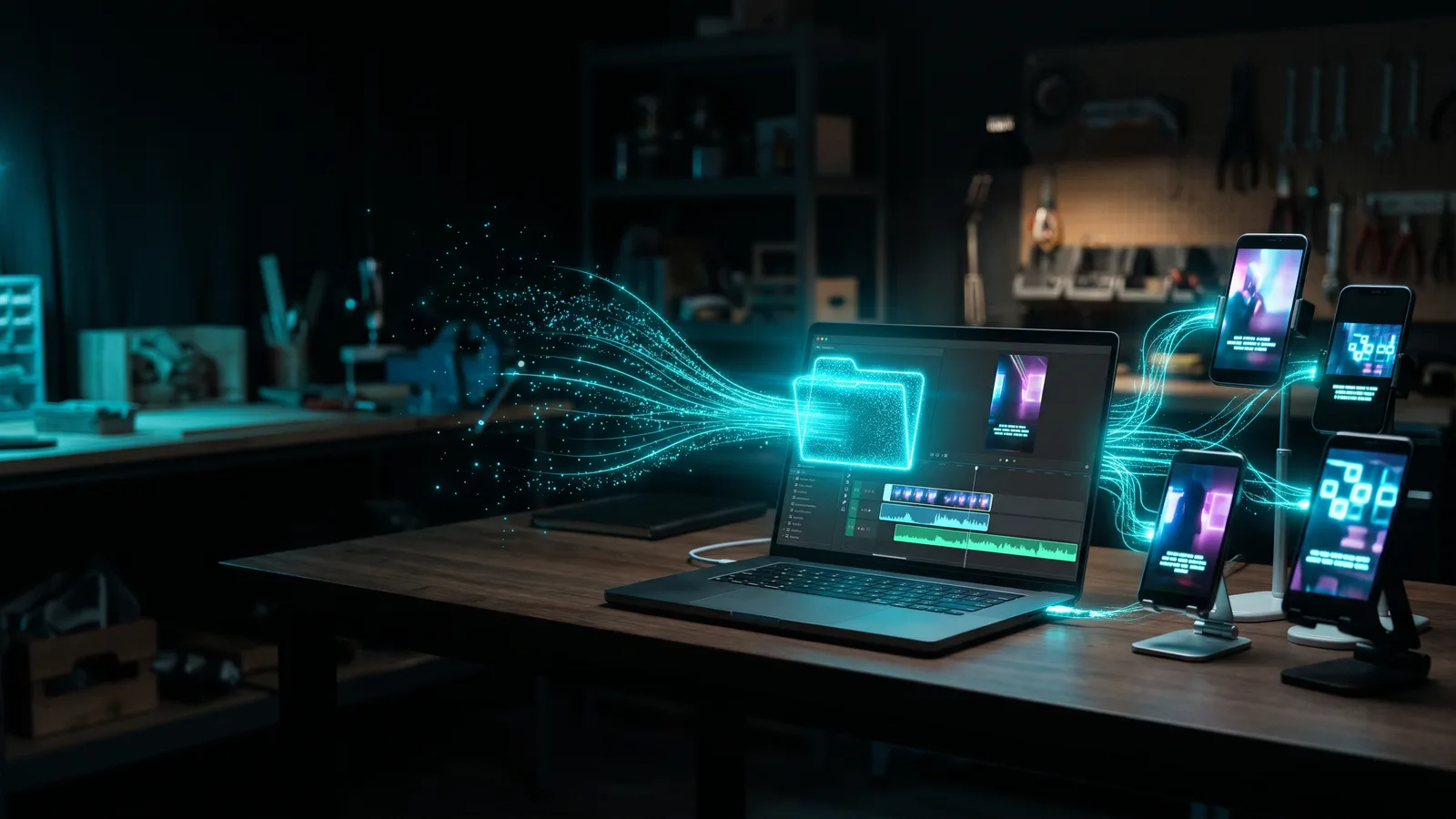
A watch folder (also called a hot folder) is a normal folder that a program keeps an eye on. Drop a new video in and the program processes it automatically with settings you chose in advance. Classic watch folders only convert formats. With AI watch folder video editing, like ZippyClip's, the clip is actually edited and published for you.
Key takeaways
- A watch folder turns "drop a file in a folder" into the trigger for work you'd otherwise do by hand.
- Adobe Media Encoder and Apple Compressor have watch folders, but they convert and compress files with presets. They don't cut, caption or post.
- Zapier and Repurpose.io can post files from Google Drive or Dropbox, but don't edit them.
- ZippyClip's watch folders run your saved prompt, edit the clip and publish it to the channels you picked, with zero clicks after the drop.
- Use a dedicated folder, keep the app running and check the first results.
What is a watch folder, in plain words?
A watch folder is a folder with a rule attached: "whenever a new file shows up here, do this to it." Set the rule once; after that, dropping a file in is all it takes.
The term is common in print production. Enfocus PitStop Server's "hot folders" watch an input folder, run a set action on each new file and send the result to an output folder (Enfocus). Video apps like Media Encoder and Compressor use the same trick.
How does watch folder video editing work?
Watch folder video editing needs three parts: a folder, instructions, and an app that stays running to apply them:
- You point the app at a folder.
- You attach instructions to it. In older tools these are presets (format, size, quality). In AI tools they can be a written prompt.
- You drop a video in.
- The app notices the new file, processes it and saves or publishes the result.
- Depending on the app, the original is moved aside or skipped so it isn't processed twice.
The big difference between tools is step 2. A preset can only say "make this an MP4 at 1080p." A prompt can say "cut this into a short, add captions and post it."
Which video tools have a watch folder?
Several well-known tools have one, but most convert files rather than edit them.
Adobe Media Encoder
You add a watch folder with File > Add Watch Folder, or by dragging a folder onto the Watch Folders panel. Then you pick a format and preset. Every video or audio file that lands there is encoded with those settings and saved to an Output folder inside the watch folder (Adobe Help).
Adobe's tutorial adds that originals are moved into a date-and-time subfolder so they aren't processed again. You can even drop in Premiere Pro or After Effects projects to render them (Adobe Learn). Adobe's pages don't say whether the app must stay open, but trainer Larry Jordan wrote in 2018 that it does (Larry Jordan, 2018).
Apple Compressor
Any folder on your Mac or a connected drive can be a Compressor watch folder. Compressor transcodes new files with the presets you chose and keeps working while it runs in the background (Apple Support). By default it ignores files already in the folder when you switch it on.
DaVinci Resolve
According to 2022 coverage of the DaVinci Resolve 18 release, Resolve 18 added a Proxy Generator app "for automatically creating proxies within watch folders" (PetaPixel, 2022). Proxies are lightweight copies for smoother editing, linked automatically (ProVideo Coalition, 2022). Blackmagic's current pages don't describe it, so check your version. It prepares files; it doesn't edit them.
HandBrake
HandBrake is free and open source (HandBrake), but its official docs describe a batch queue, not a watch folder (HandBrake docs). A community Docker image adds one, and says it is "entirely unofficial" (GitHub).
Can a watch folder actually edit a video, or just convert it?
Classic watch folders only convert. Media Encoder, Compressor, Proxy Generator and HandBrake all apply presets: format, size, compression. None of them trims dead air, adds captions, reframes to vertical or writes a post.
That's fine for editors exporting the same formats daily, but not for a business owner who wants a raw clip to become a finished Reel.
An AI watch folder closes that gap. Instead of a preset, you attach a prompt in plain English, so the folder can trigger real editing and publishing. For the bigger picture, see how to automate video editing.
Can you use Google Drive or Dropbox as a watch folder?
Yes, in two ways. First, Google Drive for desktop shows your Drive folders in File Explorer on Windows and Finder on Mac (Google Drive Help), so a desktop app can watch a Drive folder like any other folder. "Streaming" mode only works while Drive for desktop is running and online; "mirroring" keeps a full local copy.
Second, cloud automation tools can use a Drive folder as a trigger:
- Zapier has a "New File in Folder (Realtime)" Google Drive trigger (Zapier). Its "Upload new Google Drive videos to YouTube" template uploads the file as is, with no editing step (Zapier template).
- Repurpose.io can publish from Google Drive or Dropbox folders to several platforms, "within a couple of hours" (Repurpose.io).
To get clips from your phone into that folder, the Google Drive app lets you upload videos to a chosen folder, and you can limit uploads to Wi-Fi (Google Drive Help). We cover the full phone workflow in how to get videos edited and posted from your phone automatically.
Which watch folder tool is best for a small business?
For a small business that wants videos edited and posted hands-free, ZippyClip is our pick. Of the tools we compared, it's the only one whose watch folder edits and publishes, not just converts. If you only need format conversion, Media Encoder or Compressor are solid choices.
ZippyClip is made by the team behind this blog.
| Tool | Best for | What the watch folder does | Price / free option (as of Oct 2026) | Watch-outs |
|---|---|---|---|---|
| ZippyClip (our pick) | Business owners and creators who want clips edited and posted hands-free | Runs your chosen prompt, edits the clip and publishes to the channels you picked | Free to start, with a watermark and 50 API tokens; Pro removes the watermark | Desktop app (Windows, macOS); TikTok publishing is Pro |
| Adobe Media Encoder | Premiere and After Effects users exporting the same formats repeatedly | Encodes new files with presets; can render dropped Premiere/AE projects | Only in Creative Cloud; Premiere plan US$22.99/mo (annual, billed monthly; 7-day trial), though Adobe doesn't confirm it includes Media Encoder | Converts only; reportedly must stay open; preset gotchas |
| Apple Compressor | Mac and Final Cut Pro users | Transcodes new files with presets in the background | $49.99 one-time (Mac App Store) or in Apple Creator Studio at $12.99/mo | Mac only; converts only |
| Repurpose.io | Publishing finished videos from Drive or Dropbox | Posts new files from a cloud folder to several platforms | From $35/mo; 14-day trial capped at 10 published videos | No creative editing; not instant |
Prices can change, so check each official page before you buy.
1. ZippyClip: a watch folder that edits and publishes
ZippyClip is a desktop app for Windows and macOS that works as your AI marketer. Point its watch folders at any folder on your computer. Drop a video in and it runs your chosen prompt, edits the clip and publishes it to the channels you picked. Zero clicks after the drop.
Why it fits this question best:
- The prompt is the preset. You describe the edit in plain English, for example "Cut this long video into 3 viral shorts" or "Remove the dead air and schedule for tomorrow at 9am."
- It works from your phone. Send a clip to Google Drive while you're out; your desktop picks it up, edits it with your saved prompt and publishes everywhere.
- It handles edits presets can't. Word-level captions, smart vertical reframing with subject tracking, and removing pauses and filler words.
- It posts for you. It publishes to YouTube, TikTok, Facebook, Instagram and X from one screen (TikTok publishing is a Pro feature), and writes SEO titles, descriptions, hashtags and tags per platform.
- It can space posts out. Schedule posts every X hours so new videos are edited, queued and posted with a delay.
Watch folders, the Google Drive workflow and scheduling are included in the free download, so you can test the whole loop before paying. Pro makes them unlimited, removes the watermark and adds TikTok publishing. To see how this fits a bigger hands-off setup, read how to put your video marketing on autopilot.
2. Adobe Media Encoder: best if you already live in Premiere
Media Encoder is strong at repeatable exports. You can attach several presets, and Adobe's tutorial shows watch folders on a network share so another computer does the rendering (Adobe Learn). It's "Available only in Adobe Creative Cloud" (Adobe). Adobe's Premiere plan page doesn't list it; only a 2020 Adobe Community expert answer says that plan includes it, so confirm before buying.
Watch out for preset settings: watch-folder presets must be custom, with "Export As Sequence" turned off, or you may only get the first frame (Adobe Help).
3. Apple Compressor: best low-cost option on a Mac
Compressor costs $49.99 one-time on the Mac App Store (App Store) and is also part of Apple Creator Studio, with a 30-day free trial for new subscribers (Apple). It's Mac only and doesn't edit content.
4. Repurpose.io: best for posting finished videos from a cloud folder
Useful if your videos are already edited. Plans start at $35/month or $349/year, with no free plan (Repurpose.io pricing).
How do you set up a watch folder?
These steps follow Adobe's and Apple's docs:
- Create a dedicated folder. Not Downloads or Desktop; one folder per job, like "To Reels."
- Add it in your app. In Media Encoder, use File > Add Watch Folder. In ZippyClip, point it at the folder.
- Attach instructions. Pick presets in Media Encoder or Compressor, or choose the prompt and channels in ZippyClip.
- Turn it on. In Media Encoder, keep "Auto-Encode Watch Folders" checked (Adobe Help). In Compressor, tick the checkbox to activate it (Apple Support).
- Decide what happens to old files. Compressor ignores files already in the folder by default; you can change that.
- Test with one clip. Drop a short video in and check the result before you rely on it.
What are the best tips for using watch folders?
The best tips help you avoid half-copied files, confusion and mistakes going live.
- One folder, one job. Separate folders for "vertical short" and "long YouTube video" keep instructions simple.
- Let big files finish copying. Larry Jordan wrote in 2017 that Media Encoder processes a file once it has finished copying in (Larry Jordan, 2017). Copy finished files in rather than exporting straight into it.
- Keep the app running. Larry Jordan says Media Encoder must stay open, and Drive streaming only works while Drive for desktop is running (Google Drive Help).
- Review AI output early on. Descript says its AI editor "can make mistakes," and Kapwing says generative AI "is rarely 100% correct" (Descript Help, Kapwing). Check the first batch before you go fully hands-off.
Sources
- Enfocus — Hot folders defined — https://cdn.enfocus.com/manuals/ReferenceGuide/PS/11/enUS/en-us/concept/c_aa1015117.html
- Adobe Help — Encode video or audio items in Media Encoder — https://helpx.adobe.com/ie/media-encoder/using/add-items-encoding-queue.chromeless.html
- Adobe Learn — Create a watch folder — https://www.adobe.com/learn/media-encoder/web/create-watch-folder
- Adobe — Media Encoder — https://www.adobe.com/products/media-encoder.html
- Adobe — Premiere plans — https://www.adobe.com/products/premiere/plans.html
- Adobe Community — Media Encoder without the All Apps plan (2020) — https://community.adobe.com/t5/account-payment-plan-discussions/can-you-get-media-encoder-without-buying-the-all-apps-plan/m-p/11458918
- Larry Jordan — AME network watch folders (2018) — https://larryjordan.com/articles/adobe-media-encoder-set-up-network-watch-folders/
- Larry Jordan — AME: automate compression with watch folders (2017) — https://larryjordan.com/articles/adobe-media-encoder-automate-compression-with-watch-folders/
- Apple Support — Compressor watch folders — https://support.apple.com/guide/compressor/cpsra6b76395/mac
- Apple — Compressor — https://www.apple.com/final-cut-pro/compressor/
- Mac App Store — Compressor — https://apps.apple.com/us/app/compressor/id424390742?mt=12
- PetaPixel — DaVinci Resolve 18 released (2022) — https://petapixel.com/2022/07/21/blackmagic-davinci-resolve-18-is-officially-released/
- ProVideo Coalition — Resolve 18 (2022) — https://www.provideocoalition.com/blackmagic-resolve-cloud-update-delivers-resolve-18-and-new-cloud-based-prodcuts/
- HandBrake — https://handbrake.fr/
- HandBrake docs — Queue — https://handbrake.fr/docs/en/latest/advanced/queue.html
- jlesage/docker-handbrake — https://github.com/jlesage/docker-handbrake
- Zapier — Google Drive integrations — https://zapier.com/apps/google-drive/integrations
- Zapier — Upload new Google Drive videos to YouTube — https://zapier.com/apps/google-drive/integrations/youtube/15544/upload-new-google-drive-videos-to-youtube
- Repurpose.io — Pricing — https://repurpose.io/pricing/
- Repurpose.io Help — Quick start — https://support.repurpose.io/en/article/quick-start-guide-1aqbuu5/
- Google Drive Help — Upload files (iOS) — https://support.google.com/drive/answer/2424368?co=GENIE.Platform%3DiOS&hl=en
- Google Drive Help — Stream vs mirror — https://support.google.com/drive/answer/13401938?hl=en
- Descript Help — Underlord — https://help.descript.com/hc/en-us/articles/36803785502221-Underlord-beta-Your-AI-co-editor-in-Descript
- Kapwing — Giving AI a canvas to paint on — https://www.kapwing.com/blog/giving-ai-a-canvas-to-paint-on/